
A step-by-step guide to restoring a UniFi Network Controller using a saved backup file.
Restoring from a backup is essential when migrating to a new UniFi Controller, recovering from data loss, or rolling back to a stable configuration. Whether you’re using a Cloud Key, Dream Machine, self-hosted controller, or UniFi OS Console, this guide walks you through how to restore UniFi from a backup.
Table of Contents
Why Restore from a UniFi Backup?
Restoring a backup allows you to:
- Recover site configurations after accidental deletion or corruption
- Migrate your UniFi site to new hardware or a new controller
- Roll back recent changes that caused connectivity or adoption issues
- Restore user roles, device names, VLANs, WLANs, firewall rules, and settings
Step 1: Download a Backup File (Optional but Recommended)
Before initiating a restore, always create a fresh backup in case something goes wrong.
To manually create a UniFi backup:
- Go to your UniFi Controller or UniFi OS Console.
- Navigate to:
Settings > System > Backup (or Backup/Restore on some versions) - Click Download Backup File and save it securely.
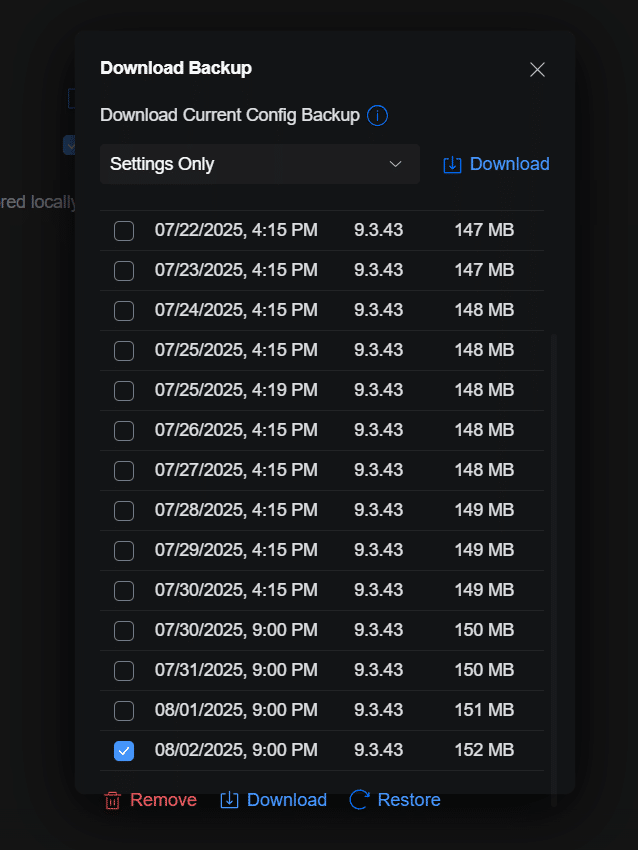
Step 2: Restore from an Existing Auto Backup
If your controller is configured to create automatic backups (such as daily or weekly), you can restore from one of these existing backup points.
To restore from an auto backup:

- Open your UniFi Controller.
- Go to Settings > System > Backup.
- Under Backup History, locate the desired backup.
- Click Restore next to it.
- Confirm when prompted.


⚠️ The controller will reboot as part of the restoration process.
Step 3: Restore Using a Manual Backup File
If you’re transferring to a new controller or restoring from an external backup file:
To restore from a manual .unf file:
- Go to Settings > System > Backup/Restore.
- Click Upload File.
- Select your
.unfbackup file from your computer. - Click Restore.
- Confirm when prompted.
⏳ Your controller will restart during this process.
Step 4: Log In with the Backup Credentials

After the controller reboots:
- You’ll need to log in with the username and password that were active at the time the backup was made.
- If your current credentials do not work, try the admin login that existed when the backup was originally created.
Additional Tips
- Backups include settings, devices, and clients but not UniFi Protect video data or local logs.
- If you’re restoring to a new host or IP address, devices may show as “Disconnected.” You may need to SSH into them and run
set-informwith the new controller URL. - Keep at least two recent backups stored offline or in cloud storage for redundancy.
Common Use Cases
- UniFi Cloud Key migration to UniFi Dream Machine
- Recovering after a UniFi update failure
- Restoring controller settings after hardware failure
- Testing changes in a lab environment with snapshot rollbacks
By regularly downloading your UniFi backups and understanding how to restore them, you can protect your network from unexpected problems and simplify migrations.
